Getting Started
This guide walks you through setting up your LP-Research account, installing FusionHub, activating your license, and loading your first configuration. You need two things, both provided by LP-Research: an invitation email for your account, and a FusionHub license assigned to it. If you are missing either, contact info@lp-research.com.
1. Activate your account
You will receive an invitation email titled “You’ve been invited to Susi by LP-Research”. Click the Sign in button in the email. The link signs you in directly - there is no password to set up. It expires after 7 days; if it has expired, contact LP-Research support to receive a new one.
After clicking the link you land in the LP-Research customer portal at susi.lp-research.com on the My Licenses page.
2. Your licenses in the portal
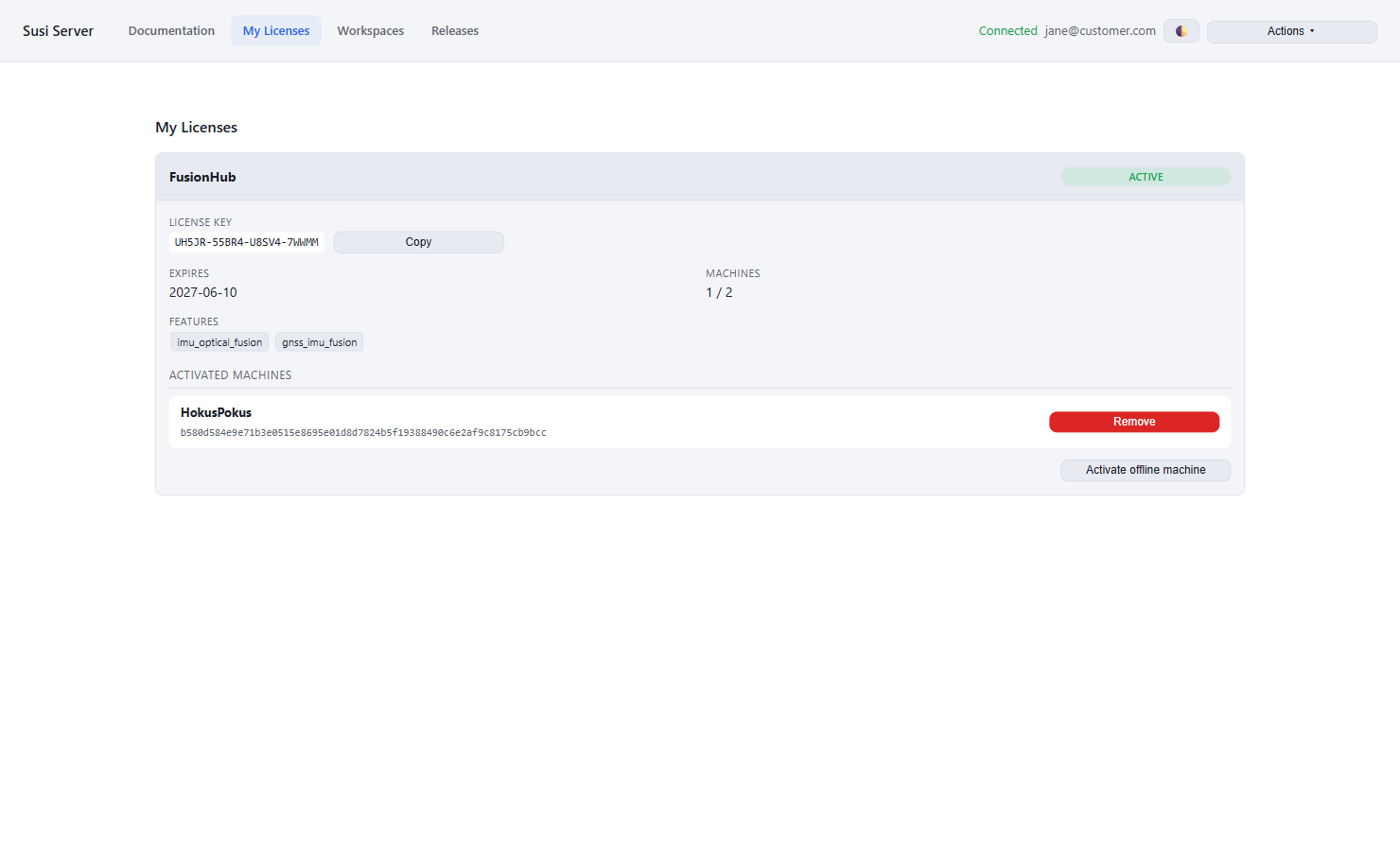
Each license assigned to your account is shown with its product, license key, expiry date, licensed features, and the machines it is activated on. From here you can:
- Copy the license key (only needed for manual entry, see below)
- Remove an activated machine to free its slot for another machine
- Activate a machine that has no internet connection (see “Offline machines” at the end of this guide)
3. Signing in to the portal later
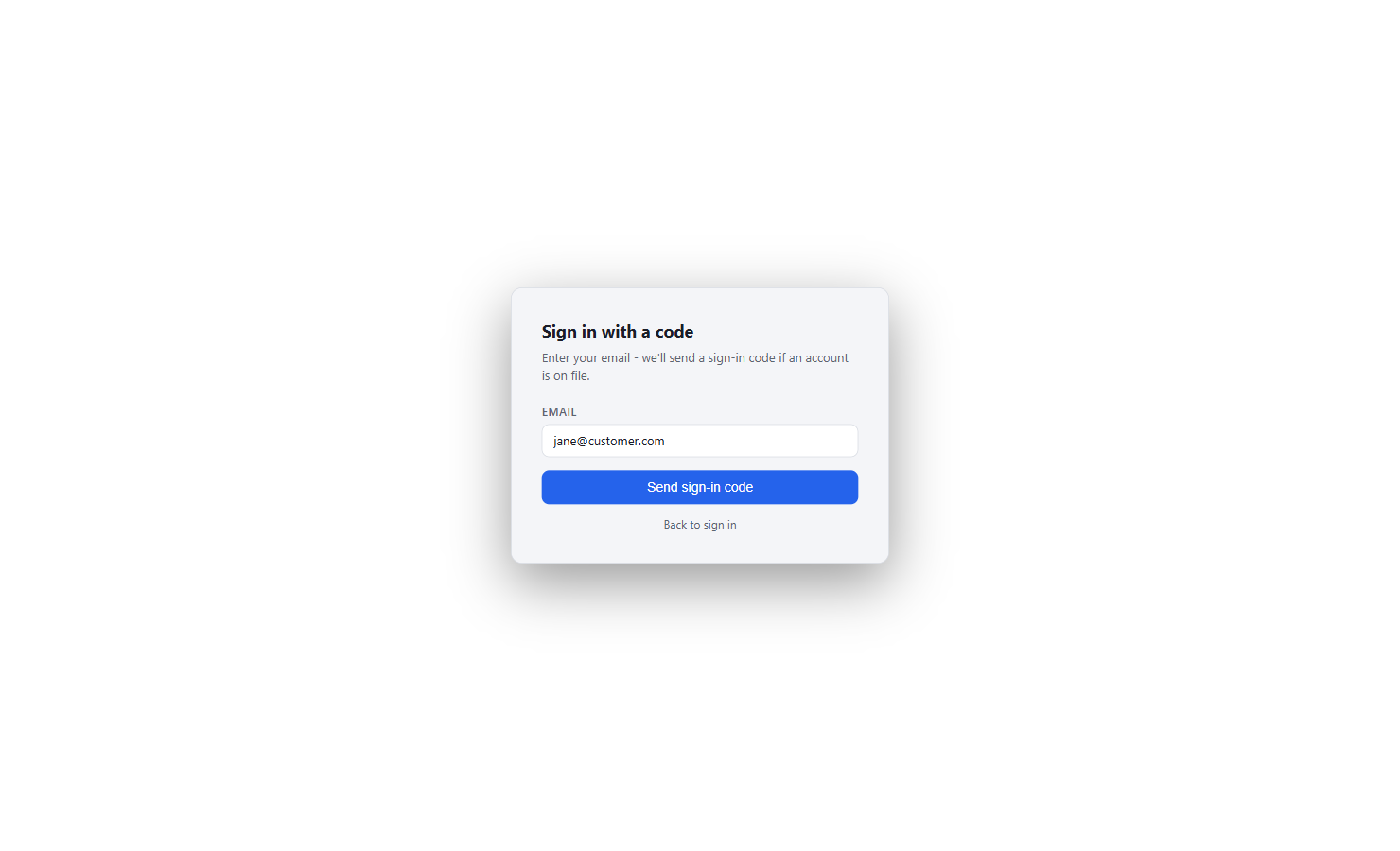
Your account has no password. To sign in again later, open susi.lp-research.com, click Login, then Email me a sign-in code. Enter your email address and you will receive a 6-digit code by email. Type it in and you are signed in.
4. Download and install FusionHub
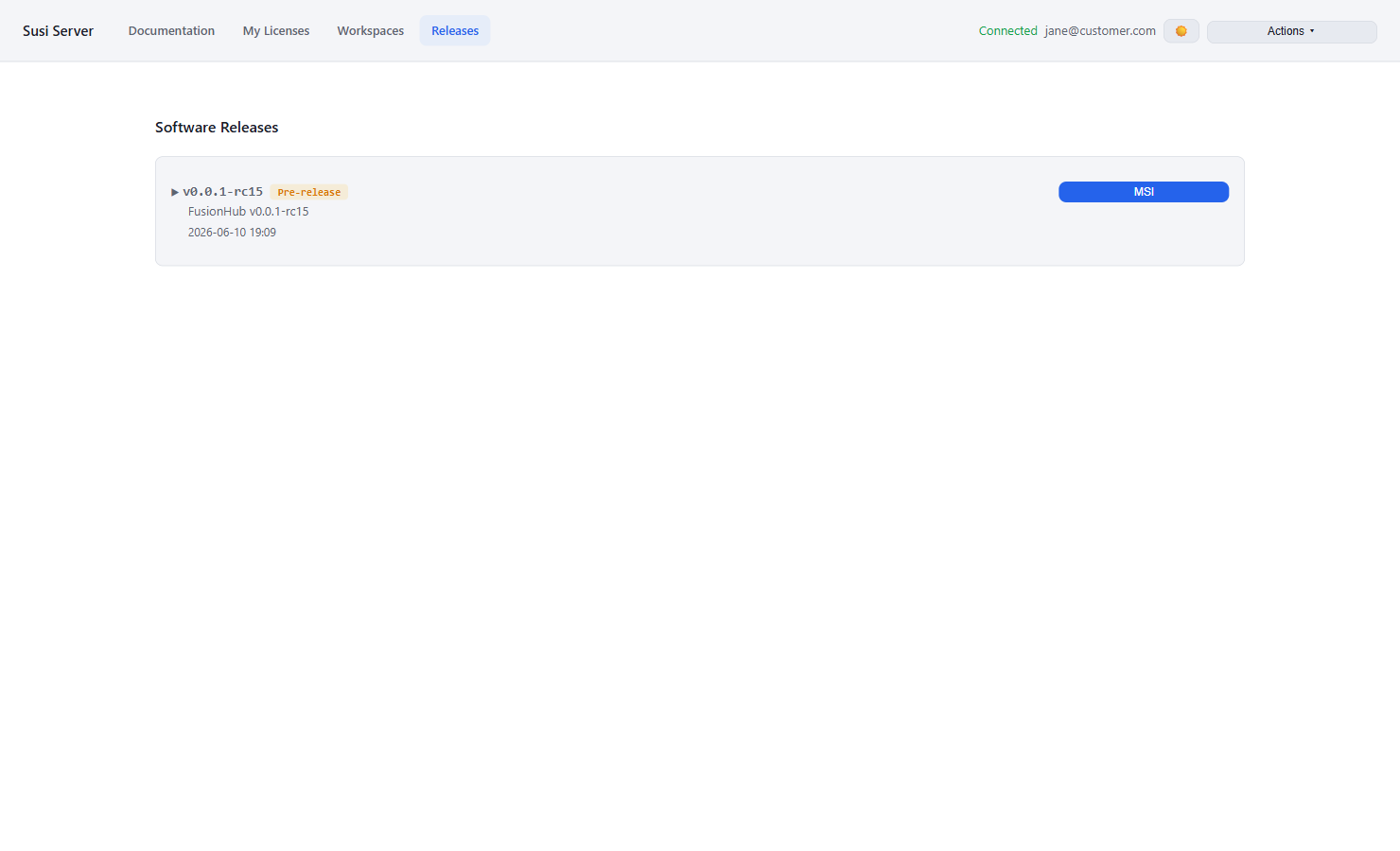
In the portal, open the Releases tab and download the installer of the latest release for your operating system.
Windows: download the MSI installer, run it and follow the install wizard. Afterwards you will find FusionHub in the start menu; start it and the FusionHub control panel opens in its own window.
macOS: download the DMG, open it and drag FusionHub into the Applications folder. Confirm the first launch when macOS asks about an app downloaded from the internet. VR streaming is Windows-only and not available in the macOS version. PCAN CAN bus interfaces are supported once the PCBUSB library from mac-can.com is installed.
5. Sign in inside FusionHub
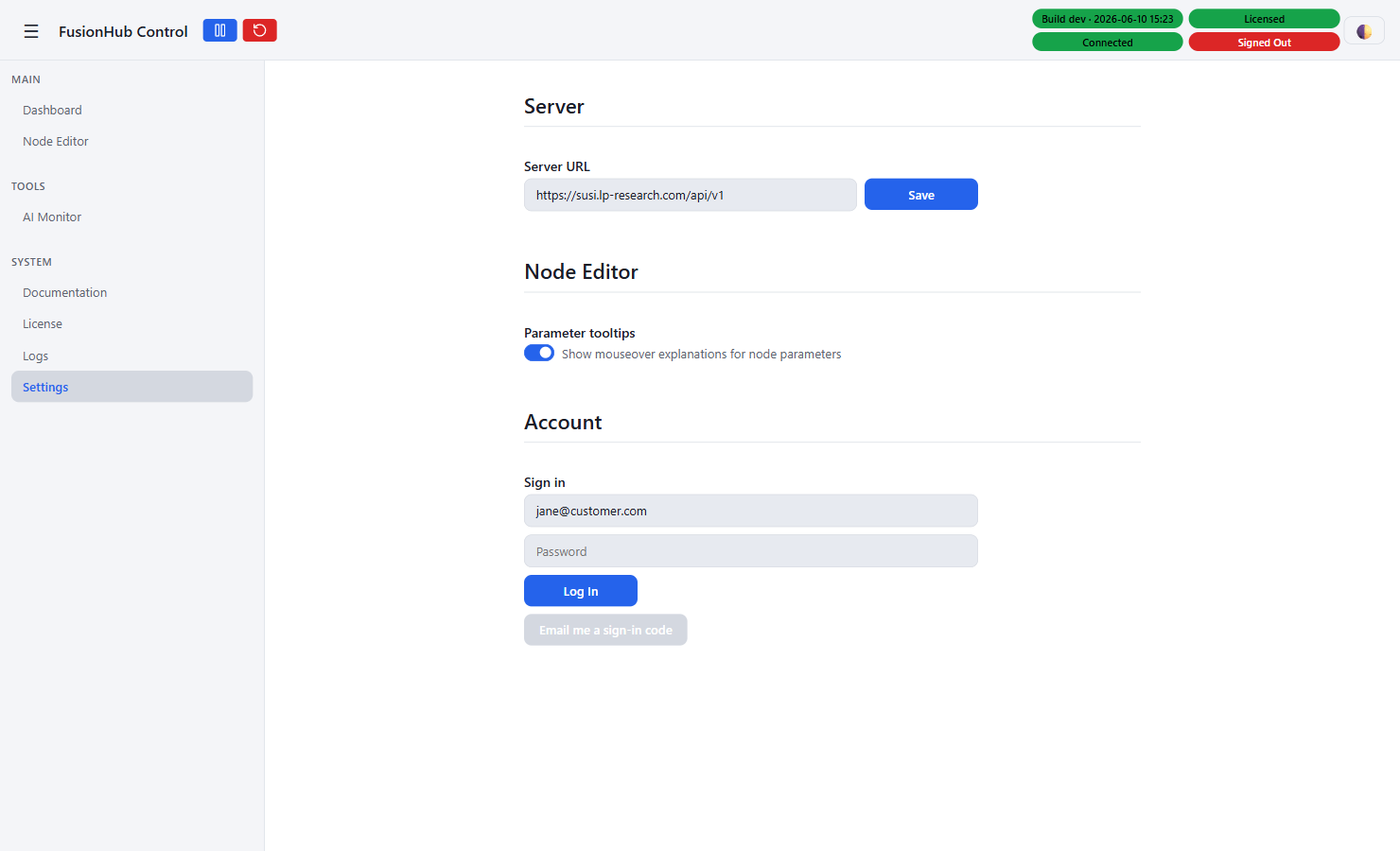
In the FusionHub control panel, go to Settings, scroll to the Account section, enter your email address and click Email me a sign-in code.
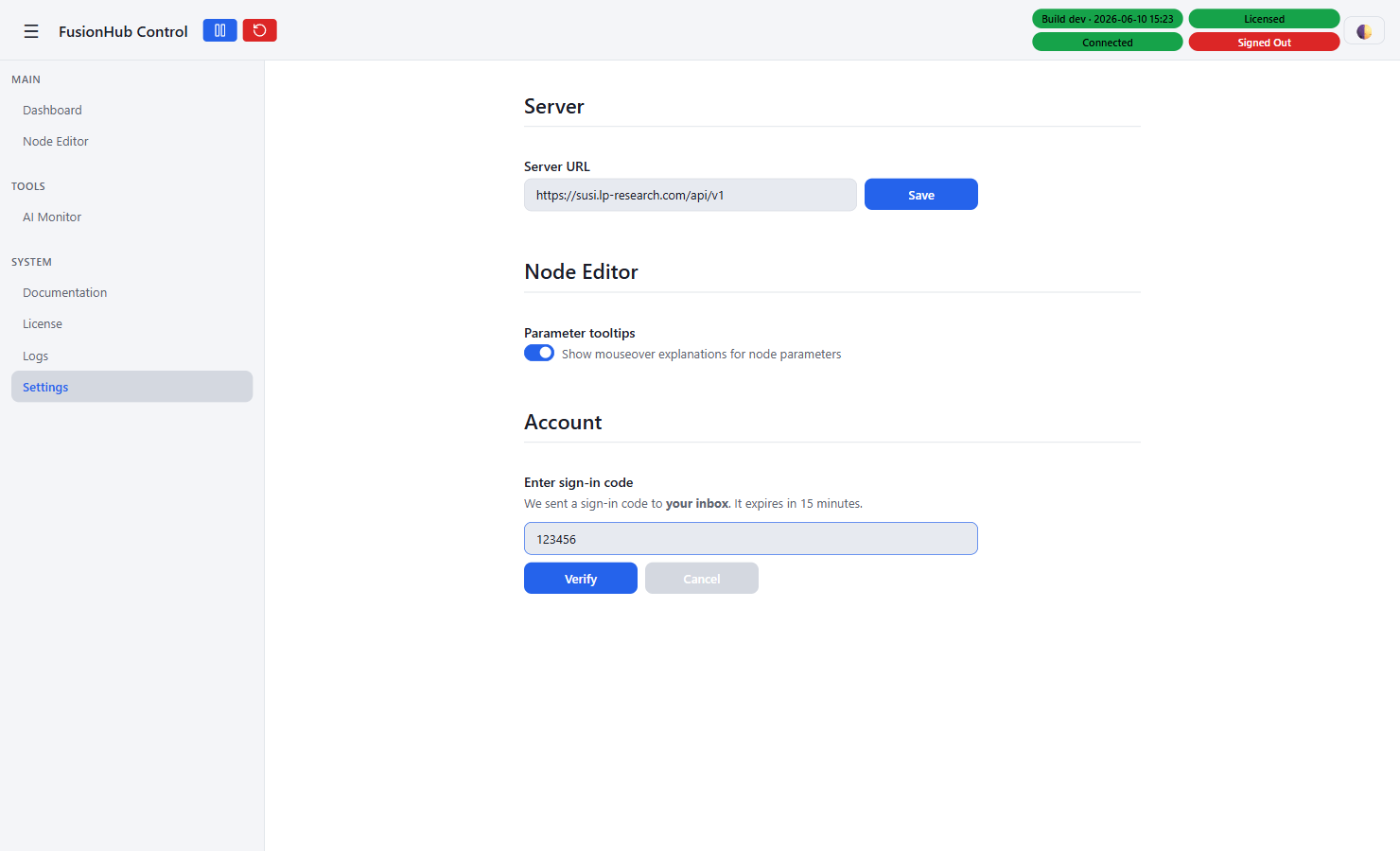
Enter the 6-digit code from your inbox and click Verify. The header badge switches to Signed In.
6. Activate the license
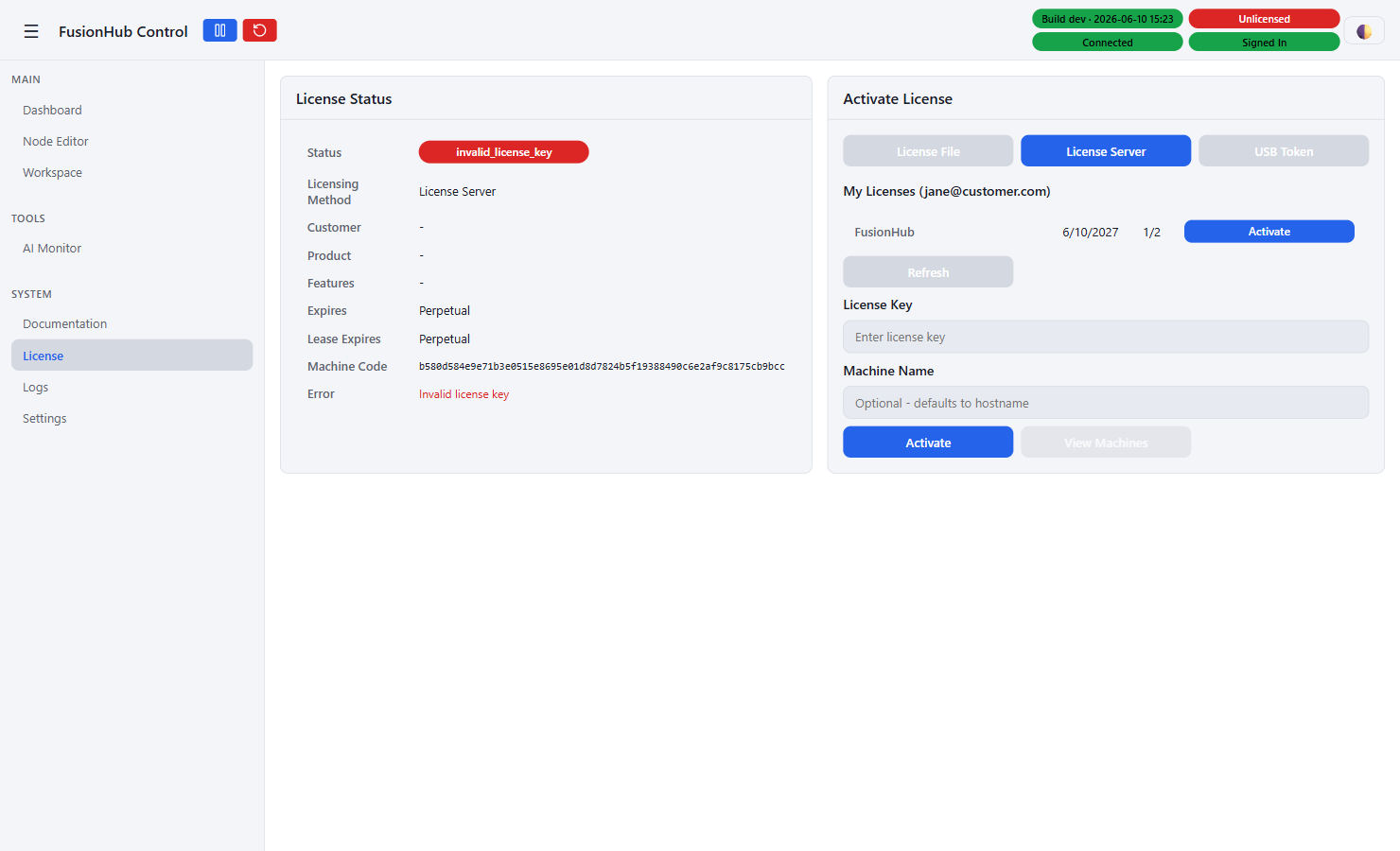
Go to the License page and select the License Server tab. The licenses assigned to your account are listed under My Licenses. Click Activate next to the license you want to use on this machine.
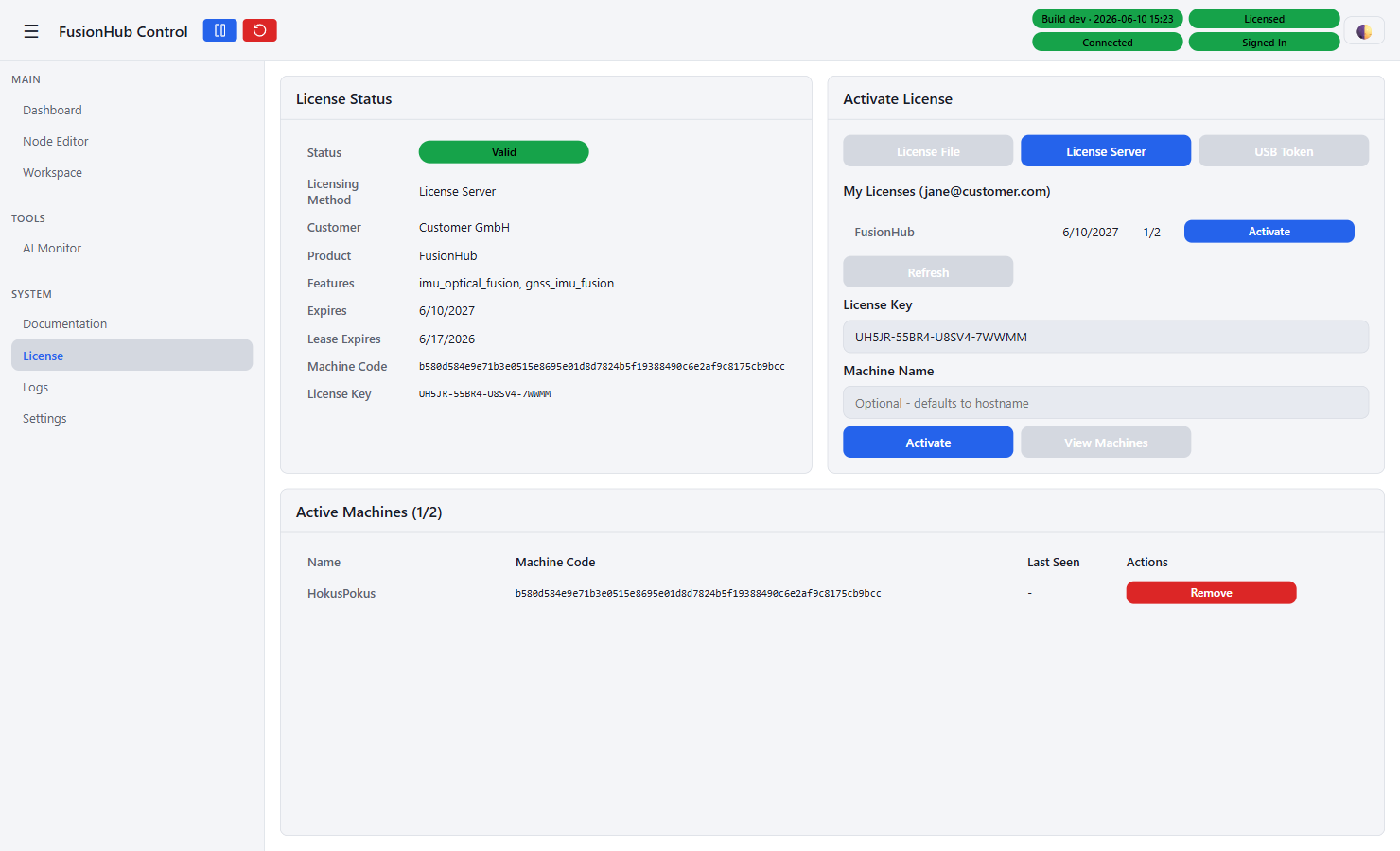
The license status turns Valid and the header shows Licensed. You are done - from now on the license verifies and renews itself automatically whenever FusionHub runs.
If you prefer, you can instead paste a license key into the License Key field and click Activate - the result is the same. The key is shown on the My Licenses page in the portal.
7. Load a configuration from your workspace
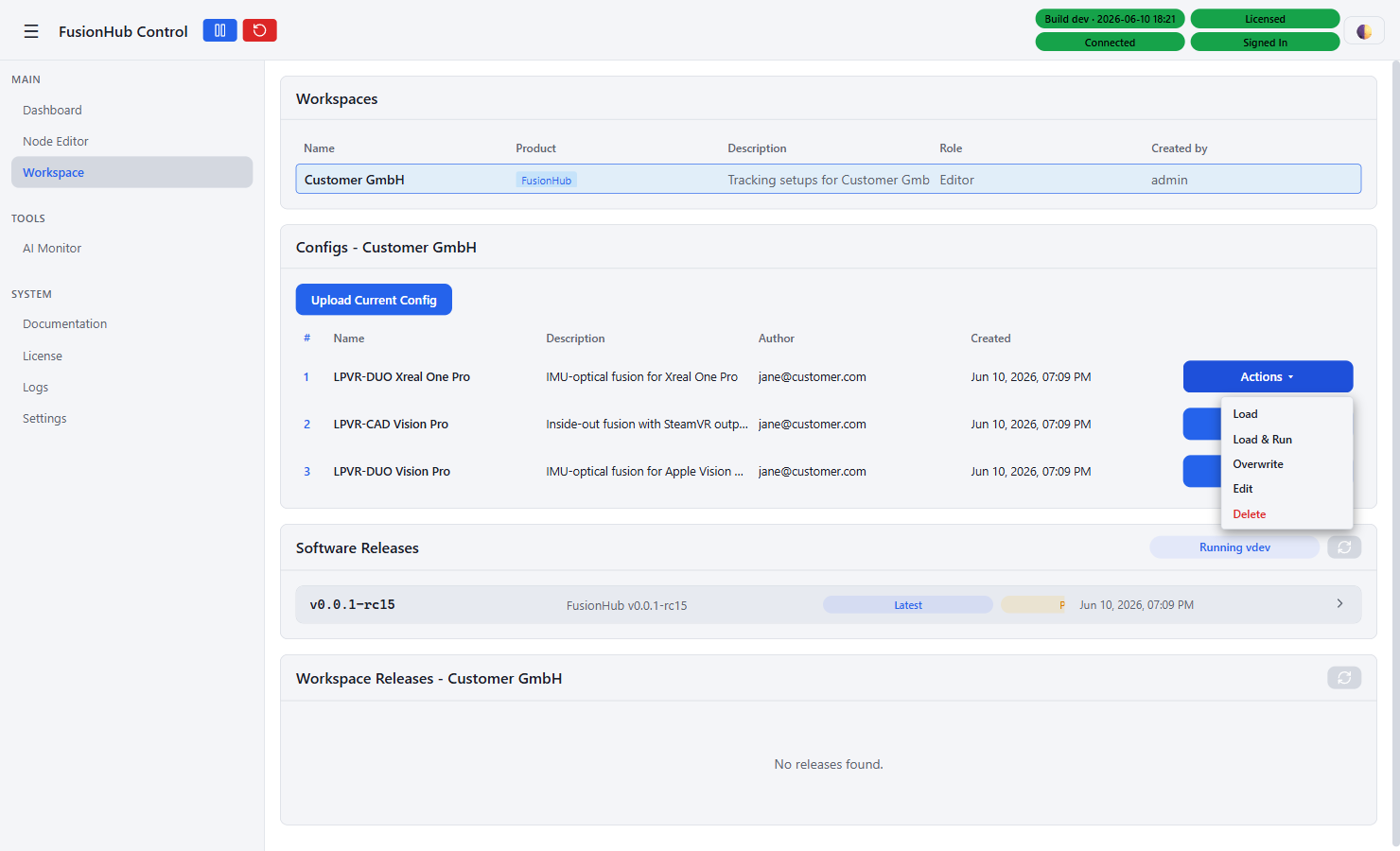
Configurations are shared through workspaces. If LP-Research has set up a workspace for you, open the Workspace page in FusionHub and select it. Under Configs, open the Actions menu next to a configuration: Load replaces the current node graph with it, Load & Run additionally restarts the engine so it takes effect immediately. The loaded graph is shown on the Node Editor page.
The Workspace page also lists the available software releases, so FusionHub can be updated from there without going back to the portal.
Moving the license to another machine
If a license has reached its machine limit, remove an old machine first: either in the portal under My Licenses > Activated Machines (click Remove), or in FusionHub under License > Active Machines. The freed slot can be used immediately by a new machine.
Offline machines
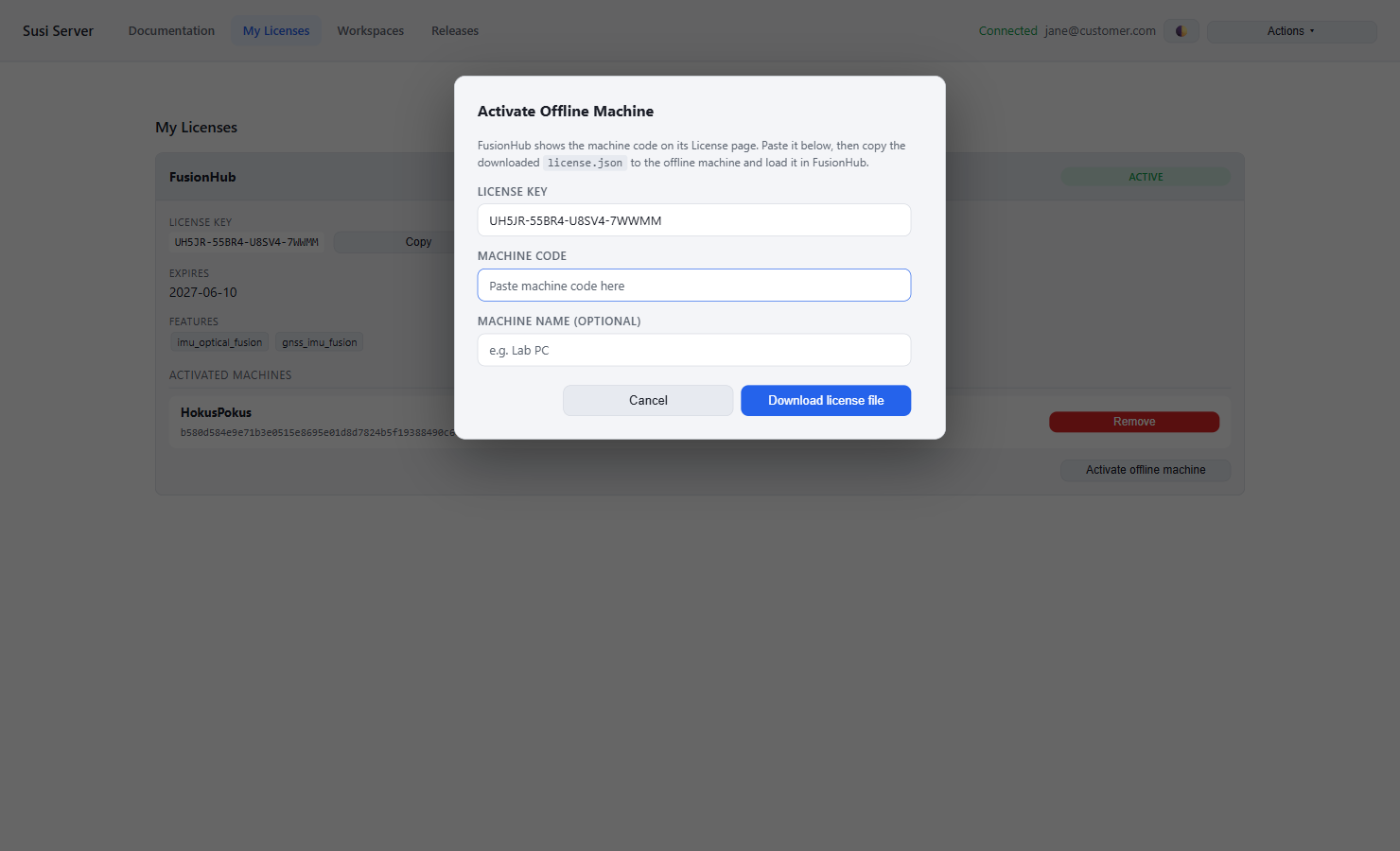
If the machine running FusionHub has no internet connection, activate it through the portal from any connected device (your phone or laptop is fine):
- On the offline machine, open the FusionHub License page and copy the Machine Code
- On a connected device, sign in to the portal, open My Licenses and click Activate offline machine
- Paste the machine code, optionally name the machine, and download the
license.jsonfile - Copy the file to the offline machine (for example with a USB drive)
- In FusionHub, open License > License File, upload or point to the file, and click Check File
The license file is bound to that specific machine and works without any further server contact.