Operator Panel
The Panel page is a customizable operator view: a grid of widgets showing live status and offering one-click controls for the nodes in your configuration. An integrator assembles the panel once; afterwards day-to-day operation - starting a recording, pausing a replay, adjusting a setting - happens on this single page, without touching the node editor.
Open it under Views > Panel in the sidebar.
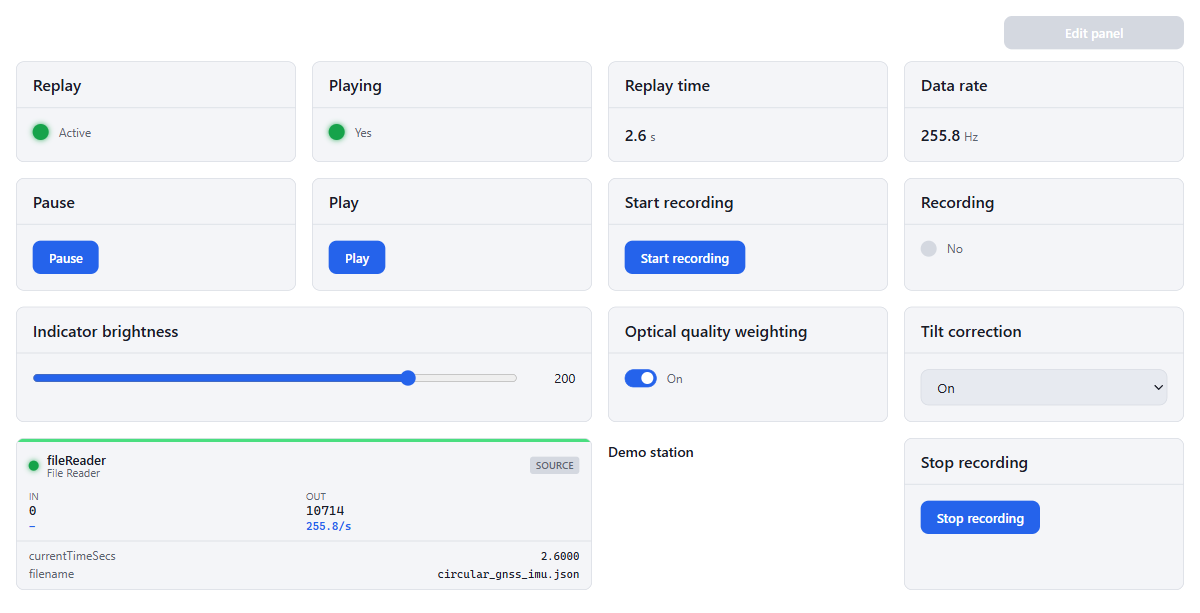
The layout is stored in the configuration itself, so it persists across restarts, follows configuration exports and imports, and stays in place when you change the node graph in the editor.
Editing the panel
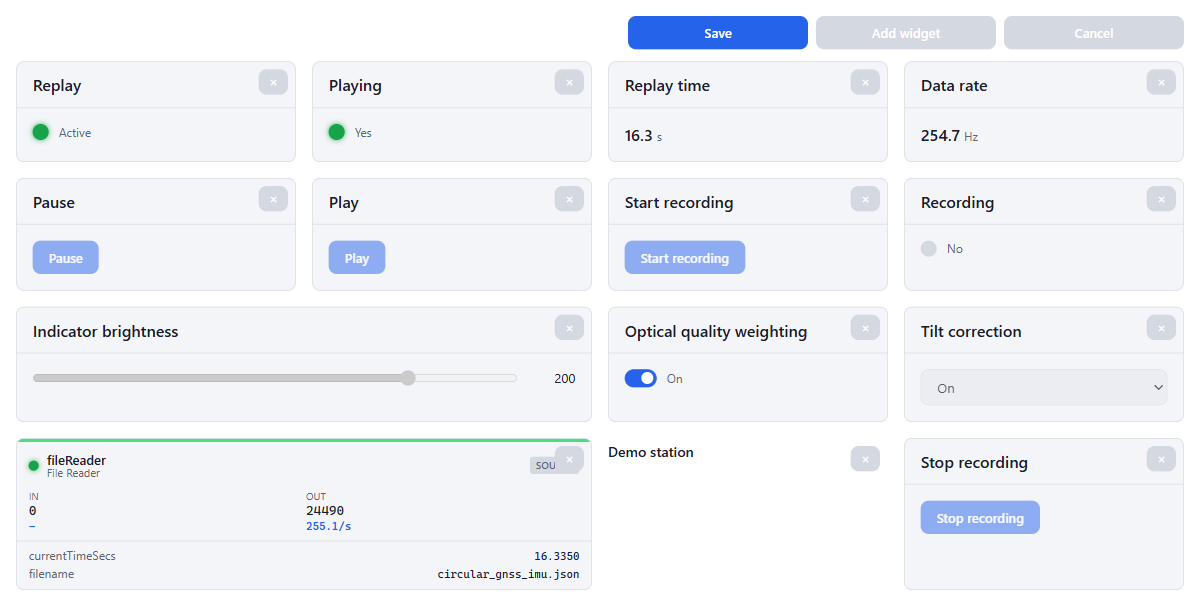
Click Edit panel to enter edit mode:
- Add widget opens the widget dialog (see below)
- Import loads a panel from a JSON file into the draft, Export saves the current panel to one - useful for moving a panel between configurations
- Click an existing widget to change its settings
- Drag widgets to reorder them; the × button in the corner removes a widget
- Save stores the layout, Cancel discards your changes
While editing, the widgets’ own controls are disabled so you can rearrange them freely.
Adding a widget
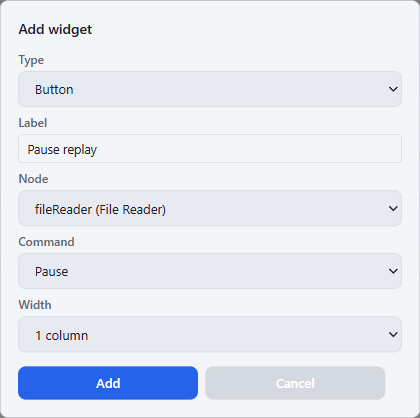
Pick a widget type, give it a label, and bind it to a node. Depending on the type you then choose a status field, a command, or a setting. Width controls how many of the panel’s four columns the widget spans.
Widget types
| Widget | What it does |
|---|---|
| Status LED | Dot that is green while the node is actively processing data |
| Boolean LED | Dot driven by a true/false status field, e.g. whether a recording is running |
| Value readout | Live status value with optional unit and decimal places |
| Rate readout | The node’s input or output rate in Hz |
| Node tile | The full dashboard tile with in/out counters and status details |
| Label | Static text for captions and grouping |
| Button | Sends a command to a node |
| Toggle | Switches a boolean setting of a running node |
| Slider | Adjusts a numeric setting of a running node, with configurable range |
| Dropdown | Selects between the values of a choice setting of a running node |
Buttons
A Button fires one of the commands a node declares. The node picker only offers nodes that have commands; the command picker lists them by name. Examples: playback control on the File Reader (play, pause, skip, set marks) and start/stop recording on the File Logger. After a click the button briefly shows Sent, or Failed if the engine rejected the command.
Live settings
Toggle, Slider and Dropdown widgets bind to a setting of a node that supports realtime configuration - the pickers only offer eligible nodes and fields. Changes apply to the running node immediately, are saved to the configuration on disk, and appear in every open browser. No engine restart is needed.
For a Slider you also set the range (Min, Max, Step) and an optional unit.
Unbound and skipped widgets
A widget whose node has been removed or renamed shows a greyed Unbound state instead of stale data. If the node exists but is not running because its feature is not licensed, the widget shows Skipped. Fix the binding by clicking the widget in edit mode and picking the node again.