ALVR Panel Mode with Apple Vision Pro
FusionHub can drive an Apple Vision Pro as a SteamVR headset over Wi-Fi through the ALVR Bridge node, with FusionHub supplying the head pose. Once the bridge is wired up you can collapse FusionHub into panel mode: a locked-down operator view that launches straight into the Operator Panel and hides every other page except Settings and License. This turns a full engineering tool into a single-screen appliance an operator can run a session from without touching the node editor.
This page covers building an ALVR control panel, switching FusionHub into panel mode, and operating the Vision Pro from it.
Prerequisites
- An ALVR Bridge node in your configuration, started and licensed. Its settings are documented on the ALVR Bridge node page and in ALVR Control under Tools.
- The ALVR client installed on the Vision Pro and on the same local network as the FusionHub machine.
- A configured head-pose pipeline feeding the bridge (for example an inside-out fusion filter), so FusionHub has a pose to stream.
Building the ALVR control panel
Open Views > Panel and click Edit panel, then add widgets bound to the ALVR Bridge node. The widget dialog only offers ALVR settings when the bound node is the bridge. A useful starting set:
| Widget | Type | What it gives the operator |
|---|---|---|
| Headset | Headset | Lists discovered and trusted clients with their connection state, and a Trust button for a new Vision Pro |
| Streaming | Streaming | Installs the SteamVR driver and starts or stops streaming |
| Tracking mode | Dropdown | Switches head tracking between the headset’s native tracking and FusionHub |
| Passthrough | Toggle | Turns the headset’s passthrough (video see-through) on or off |
| Passthrough mode | Dropdown | Selects the passthrough blend method: Blend, RGB Chroma Key, or HSV Chroma Key |
| Passthrough blend | Slider | Adjusts the Blend-mode transparency threshold |
The Headset and Streaming widgets read the live ALVR session, so they show ALVR offline until the bridge is running. See the Operator Panel page for the full widget catalog and editing workflow.
Switching to panel mode
Open Settings. Under Panel, turn on Panel mode.
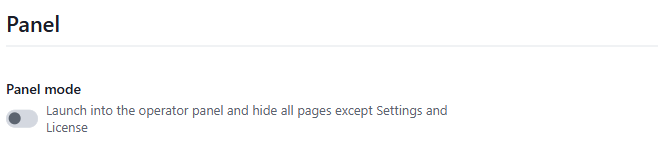
The setting is stored in the configuration, so it persists across restarts and travels with configuration exports. With panel mode on:
- FusionHub opens directly on the Operator Panel at startup instead of the dashboard.
- The sidebar collapses to the panel plus Settings and License; every other page is hidden and its address bounces back to the panel.
- The panel’s own Edit panel button disappears, so the layout can’t be changed by accident. Build and arrange the panel before enabling panel mode.
Operating the Vision Pro from the panel
In panel mode the operator works entirely from the single screen below.
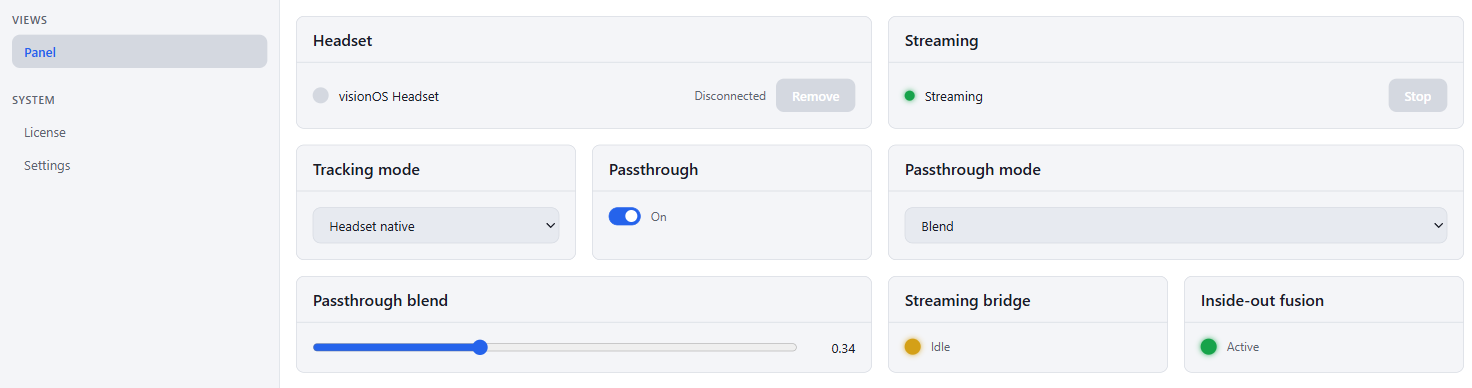
A typical session:
- On the Streaming widget, click Install driver the first time, then Start streaming to launch SteamVR with the ALVR driver.
- Put on the Vision Pro and open the ALVR client. It announces itself to FusionHub and appears on the Headset widget.
- Click Trust next to the Vision Pro on the Headset widget to accept the connection. Its state moves to Connected, then Streaming.
- Set Tracking mode to FusionHub so the head pose comes from your fusion pipeline rather than the headset’s own tracking.
- Toggle Passthrough on for a mixed-reality view, pick the Passthrough mode, and tune Passthrough blend to taste.
Every control writes through immediately and is saved to the configuration, so the headset reflects the change without an engine restart.
Leaving panel mode
Settings stays reachable in panel mode. To return to the full interface, open Settings, and under Panel turn Panel mode off. The sidebar and all pages reappear.